
Home › Forums › Photography Q&A › Connecting apps to Lightroom
- This topic has 9 replies, 2 voices, and was last updated 8 months, 3 weeks ago by
 Blessings Captured.
-
AuthorPosts
-
January 5, 2026 at 9:46 am #99447
 Blessings CapturedParticipant
I use Lightroom for my photo organizing and most of my editing. For further editing and designing I use the Affinity apps.
I’d like to set it up where I can pick a photo and “edit in” Affinity.
When I’ve tried to “choose” the app I can’t find the .exe file (the one with the app’s icon?). I’ve found the Affinity folder but in them I got the message “no items match your search”.
Is anyone able to help me out. It was very useful when I was able to use the “edit in” command with Photoshop.
Thank you so much!
-HannahAttachments:
January 5, 2026 at 8:12 pm #99454Ezra Morley
ModeratorAre you using Affinity v1, or v2? I suspect you’re using v2 which doesn’t have normal “exe” files if you use their recommended install file. Try following the instructions at the following link to make a shortcut on your desktop. Then in LR, select that shortcut on your desktop as your executable and see if it works.
If you purchased Affinity V2 for Windows directly from the Affinity Store, you will have downloaded an MSIX package. You will notice when installing Affinity V2 you will not be offered the ability to create a Desktop shortcut. This is expected and is down to how MSIX packages work.
However, you can manually create a desktop shortcut after installation. Go to Start > Run and enter Shell:AppsFolder and press OK – This will take you to a folder where you can drag and drop a copy of the Affinity V2 shortcut to your desktop.
January 5, 2026 at 8:29 pm #99455Blessings CapturedParticipantI’m use Affinity v2. I was able to follow the instruction to create a desktop shortcut. But apparently it’s not a exe file.
The Affinity shortcut only shows up when I have it show “all files”. Then when I select it in Lightroom it says “Catastrophic failure”.January 5, 2026 at 8:55 pm #99456ModeratorHmm, ok. Looks like you may need to reinstall Affinity using the regular exe installer then. 🙁
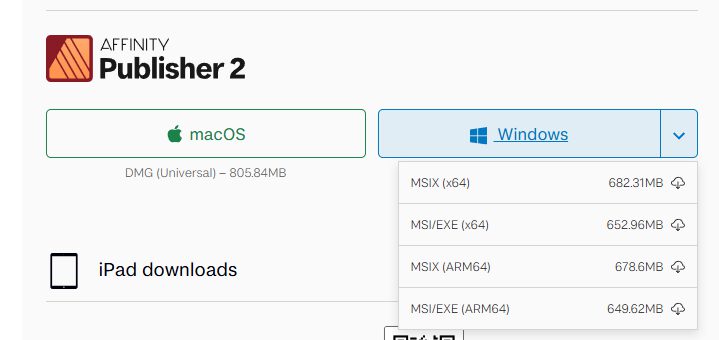
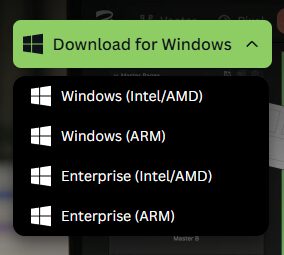
January 6, 2026 at 10:36 am #99459Blessings CapturedParticipantOkey. I’m working with two different computers (one with V2 and one with V3). What installer should I use for each version (see screenshots)? Both computers are windows and I believe intel.
Attachments:
January 6, 2026 at 2:24 pm #99469ModeratorFor v2 you’ll want the 2nd option (MSI/EXE x64).
I have no experience with v3, but according to this thread, you’ll want the to choose the 3rd option (“Enterprise” for AMD/INTEL)
https://nikonites.com/forum/threads/affinity-v3-updates-and-how-to-update-when-using-exe-installer-on-windows.52724/January 6, 2026 at 2:28 pm #99470ModeratorNote that if you want to use the feature where you can switch between Affinity apps in v2 (assuming you own more than just AfPhoto) then ALL of your Affinity apps need to be installed with the same method. You can’t mix different installers. I found that out the hard way a few months ago.
January 8, 2026 at 11:11 am #99492Blessings CapturedParticipantI got it to work with both versions! Thank you for your help!
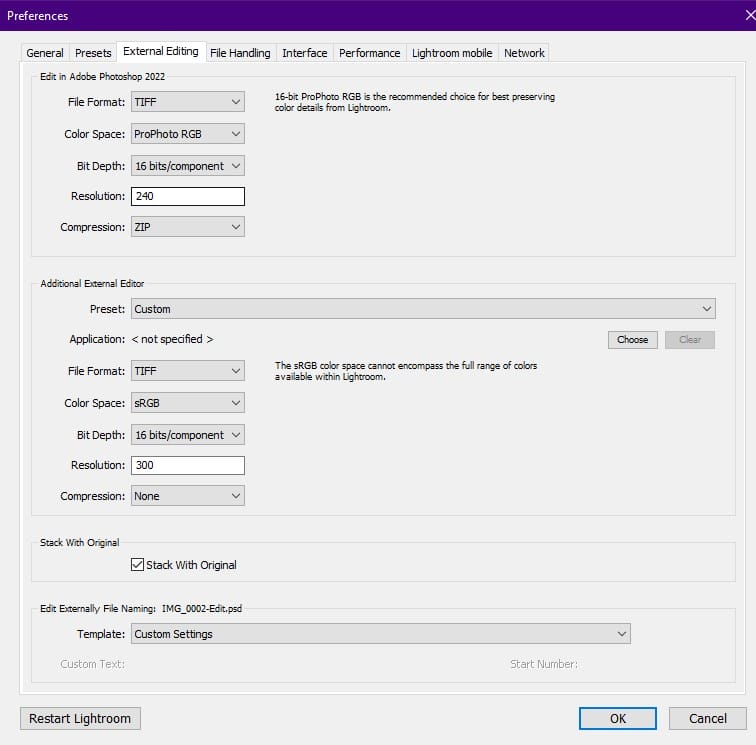
What would be your general recommendations for file format (Tiff vs psd) and color space?
January 8, 2026 at 7:15 pm #99499ModeratorYay! It’s a pleasure to help out. 🙂
Definitely TIFF for file format. I guess the colorspace kinda depends on your intent. If it’s just intended for computer screens, sRGB is fine. If you’re doing fine art prints, then you might want a different colorspace. I’d imagine sRGB is a reasonable default.
January 9, 2026 at 12:22 pm #99523Blessings CapturedParticipantThanks! I’ll keep using TIFF and sRGB.
-
AuthorPosts

You must be logged in to reply to this topic.