Home › Forums › Photography Q&A › Exporting from Lightroom Question › Reply To: Exporting from Lightroom Question
 Ezra Morley
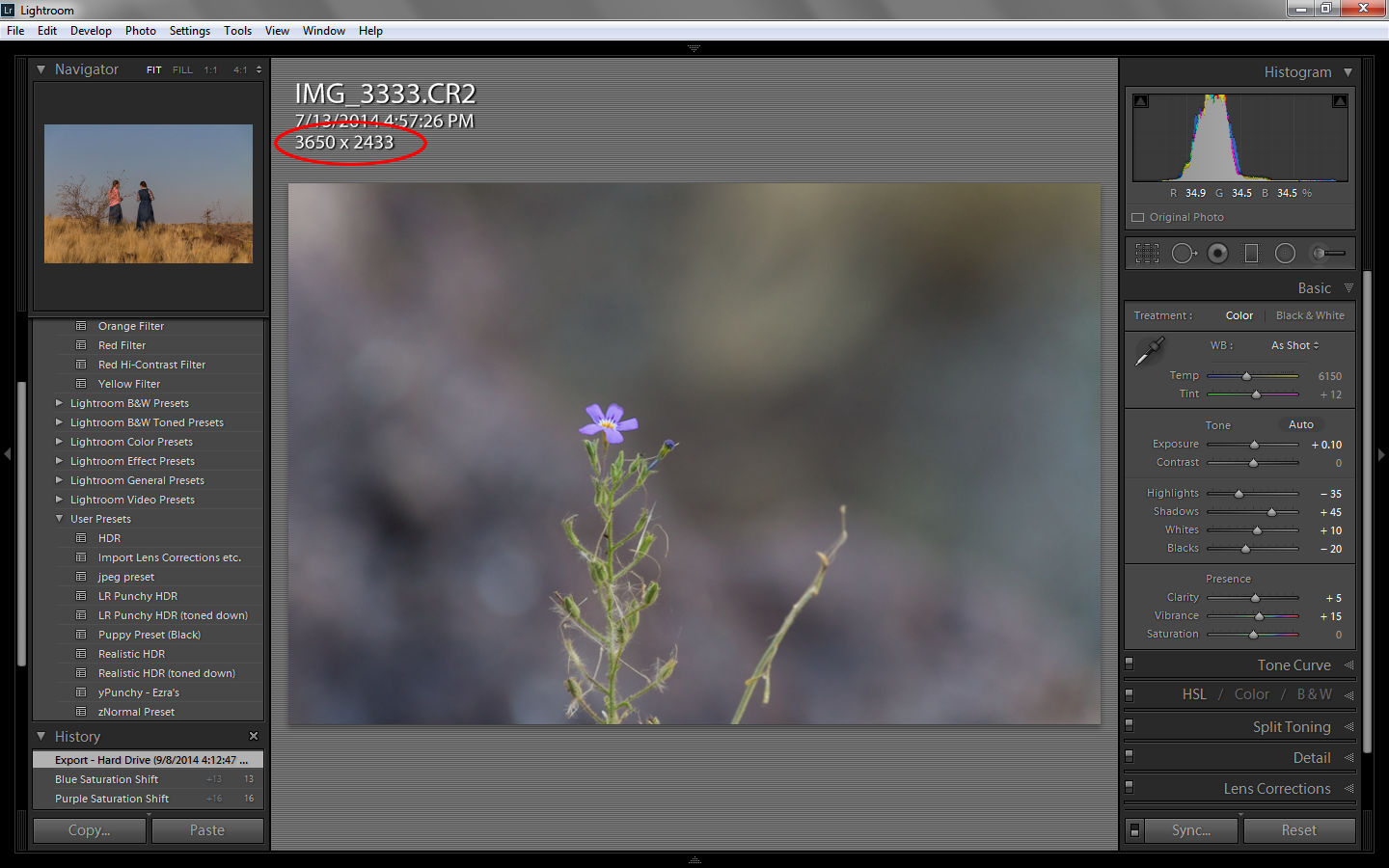
Select the image that you want to crop in Lightroom, then hit the ‘I’ key on your keyboard. You should see an info overlay with the pixel dimensions on the last line. Now select the ‘Crop’ tool in Lightroom, and drag the corners in until you have cropped a large percentage of the picture out. You can see the dimensions when you let go of the corner of the crop rectangle, it will show the dimensions of the final crop. Make it around 1200 pixels wide, then hit ‘Enter’ to apply the crop. After that, just export the file and upload it!
Once you’re done with that, you can hit the ‘I’ key once or twice to hide the overlay if you don’t want it to show all the time.
See screenshots below: