Forum Replies Created
-
AuthorPosts
-
April 25, 2026 at 4:01 pm #100883
Ezra Morley
ModeratorOuch, thats not a good feeling. 🙁
Where is the red light that blinks? Is it the same one that blinks to show activity to the SD card? Try removing the SD card and putting in a freshly charged battery, then see if it boots up. If not, remove battery, lens, SD card and leave it overnight, then try again.
Not sure anyone will buy a non functioning camera, so hopefully you can get it working again!
February 19, 2026 at 7:35 am #100071ModeratorGreat! So glad you found a fix, and thanks for letting us know! Yeah, running loud when you first power up is completely normal.
January 27, 2026 at 1:57 pm #99717ModeratorYoure welcome!
I wouldn’t be in a big hurry to delete the old Windows files unless you’re hurting for disk space. I’d suggest you give it a month or two and make sure Win 11 is stable for you and you’re able to use all your software packages properly before burning that bridge. 🙂
January 26, 2026 at 2:28 pm #99692ModeratorI wouldn’t be afraid of eBay if you’re careful to read the descriptions and choose to buy from a seller with good ratings (99.5% or higher). From a quick search it looks like NPFW6 is the part number. Keep in mind that anyone selling it new with a description that says “compatible with Dell…” is likely selling cheap aftermarket Chinese parts, if that matters to you.
January 22, 2026 at 2:01 pm #99638ModeratorPeter, I’ve wondered about Windows 11. I haven’t wanted to update to 11 because I don’t like the layout of things. But it would be nice if updating would help my laptop. Thanks for your suggestion!
It would be a good idea to upgrade anyway, because it’s not very good to be running outdated versions of Windows that don’t get security updates. But I wouldn’t count on it fixing your noisy fan problem.
You can change the layout of Win 11 to look about the same as Win 10, so don’t let that stop you. 🙂
Peter’s suggestion about trying to get access to the fan is a good one. Here’s an official Dell article on the topic of odd computer noises.
January 22, 2026 at 8:59 am #99632ModeratorIt sounds like it might be because Windows 10 is no longer supported and I don’t think it has been since October. You might try upgrading to Windows 11.
Hopefully that helps!Upgrading to Windows 11 is (officially) recommended, but it’s not likely to solve your fan issue. Sounds like a hardware problem, not software.
My guess would be that the bearings on the fan have gone bad, or something is touching/rubbing the fan blades. Cleaning out the dust was a good first try. You may need to take it to a computer repair shop and ask for a diagnosis.
January 8, 2026 at 7:15 pm #99499ModeratorYay! It’s a pleasure to help out. 🙂
Definitely TIFF for file format. I guess the colorspace kinda depends on your intent. If it’s just intended for computer screens, sRGB is fine. If you’re doing fine art prints, then you might want a different colorspace. I’d imagine sRGB is a reasonable default.
January 6, 2026 at 2:28 pm #99470ModeratorNote that if you want to use the feature where you can switch between Affinity apps in v2 (assuming you own more than just AfPhoto) then ALL of your Affinity apps need to be installed with the same method. You can’t mix different installers. I found that out the hard way a few months ago.
January 6, 2026 at 2:24 pm #99469ModeratorFor v2 you’ll want the 2nd option (MSI/EXE x64).
I have no experience with v3, but according to this thread, you’ll want the to choose the 3rd option (“Enterprise” for AMD/INTEL)
https://nikonites.com/forum/threads/affinity-v3-updates-and-how-to-update-when-using-exe-installer-on-windows.52724/January 5, 2026 at 8:55 pm #99456ModeratorHmm, ok. Looks like you may need to reinstall Affinity using the regular exe installer then. 🙁
January 5, 2026 at 8:12 pm #99454ModeratorAre you using Affinity v1, or v2? I suspect you’re using v2 which doesn’t have normal “exe” files if you use their recommended install file. Try following the instructions at the following link to make a shortcut on your desktop. Then in LR, select that shortcut on your desktop as your executable and see if it works.
If you purchased Affinity V2 for Windows directly from the Affinity Store, you will have downloaded an MSIX package. You will notice when installing Affinity V2 you will not be offered the ability to create a Desktop shortcut. This is expected and is down to how MSIX packages work.
However, you can manually create a desktop shortcut after installation. Go to Start > Run and enter Shell:AppsFolder and press OK – This will take you to a folder where you can drag and drop a copy of the Affinity V2 shortcut to your desktop.
November 21, 2025 at 10:36 pm #98905ModeratorYou’re very welcome!
The Precision 5540 looks like a really nice piece of machinery. I wouldn’t be afraid to buy refurbished from an authorized retailer or top rated seller. Just be sure to check the seller’s feedback rating. If it’s less than 99% positive, stay far away.
November 18, 2025 at 9:41 pm #98840ModeratorYou can find deals and Black Friday sales at https://www.dealnews.com/c49/Computers/Laptops/ (scroll down to see the sale listings). If you find a good deal on a laptop with a nice processor and RAM you can always upgrade the SSD cheaply later. 🙂
If you’re using it for photo editing/graphics work, I’d say 16GB of RAM is an absolute minimum. You can’t go wrong with Intel “i” series processors (i5, i7, i9, etc). There are so many brands and models out there that I can’t give any specific recommendations on what might be on sale during Black Friday. 🙂 Feel free to ask if you have a particular model or 3 in mind.
If you’re buying new, you’ll get Windows 11, but be sure not to buy something with Windows 10, as it’s now End of Life and isn’t being updated any more.
April 11, 2025 at 4:32 am #95104ModeratorI looked at the GPU, and no, I only have AMD Radeon.
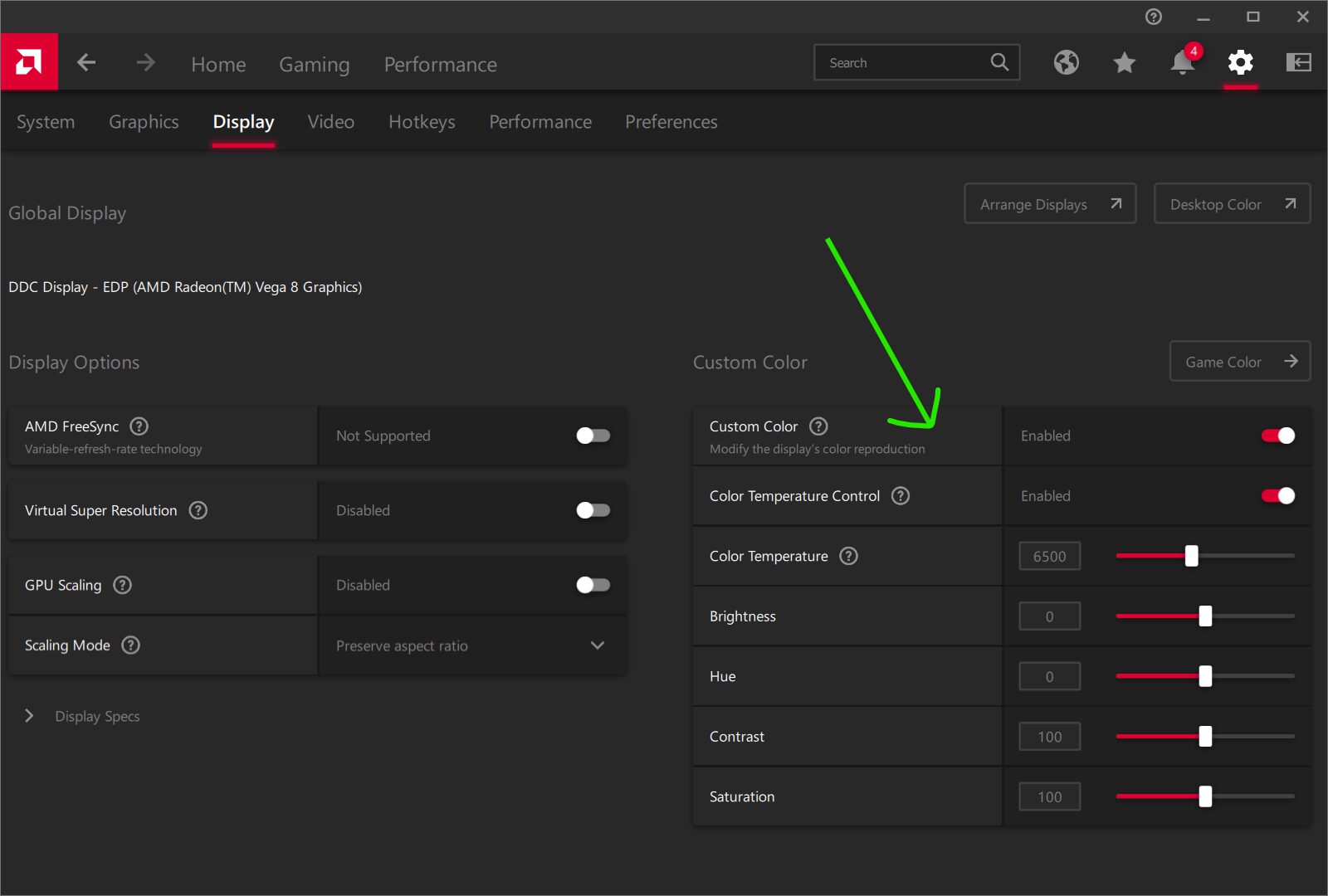
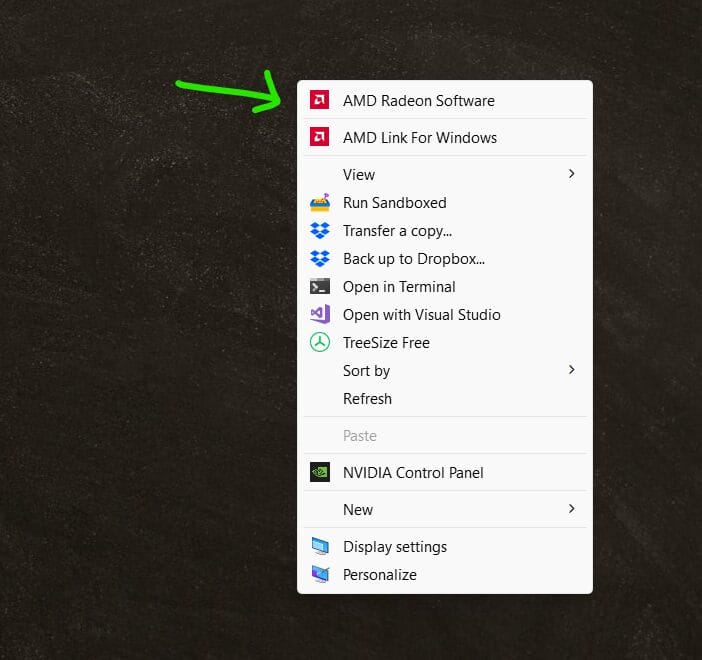
If you go to the default desktop screen where your icons are, right click, and then click on “Show More Options” do you see something for “AMD Radeon”? If so, click it and see if you can find the settings for “Display” > Custom Color. See the screenshots attached.
you mentioned the sRGB colour profiles or something, and I downloaded some and have set sRGB2014 as my default profile, and colour rendering is better than it was when I first got the laptop. And no, it’s not too drastically different to our PC now, which is good.
Where are you applying this color profile? In Lightroom, or globally for all applications? How do you go about installing and using such a profile?
I’ll attach a photo that looks good on my screen, but that printed too dark and contrasty (and maybe a little too saturated on the greens). But then you have to wonder at what angle the laptop screen should be to show colours correctly! Confounding variables haha! How does it look on your screens?
Yeah, I’d say it looks a tad too greenish and contrasty to me as well. If your laptop screen changes colors when you tilt it, then yeah, no amount of calibrating is going to fix that. 🙁 You need an IPS monitor that doesn’t change color/contrast when you tilt it. If you’re going to be doing a lot of color-critical printing it would be well worth your while to purchase an external monitor that you hook up to your laptop to use for editing photos for printing. A 2nd monitor comes in really handy for other things as well, but that’s the easiest way to get a better quality screen without having to buy a whole new computer. (Make sure you get one with IPS technology).
Attachments:
April 4, 2025 at 12:58 pm #95022ModeratorOK, gotcha, that makes sense. Unfortunately, with laptops you’re pretty limited in what you can control for the display. 🙁
Is the difference pretty big between your prints and your screen? What about the difference between your screen and your family PC? It might be good to check another laptop or monitor and get a wider feel for how your screen compares. 99% of people are just going to use factory default settings for their screens, so if you make big adjustments, you’re likely going to make things worse for other people’s screens, even if it looks better on yours.
I’ve seen some laptops that had graphics driver software that allowed you to adjust the saturation/gamma etc of the screen. You might want to check for software called “Nvidia” or something like that on your laptop.
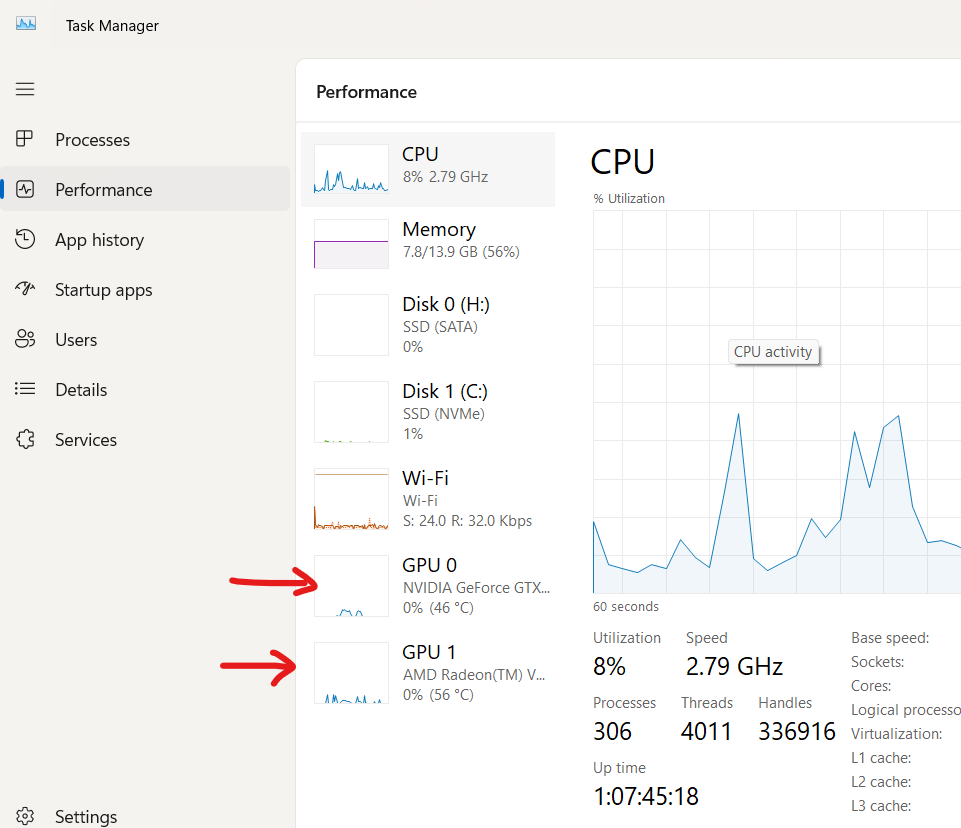
If you hit CTRL + SHIFT + ESC on your keyboard to bring up the Task Manager and click on “Performance” then you can see what shows under “GPU” (see the screenshot below). That will give you a clue as to what driver software to look for to see if it gives you any better control over your screen color.
Honestly though, unless there’s a pretty drastic difference I wouldn’t worry about it too much. I use a laptop as well, and I’m pretty sure I’ve never messed with calibration. That’s probably easy for me to say, because I have my own photo printer. When I print, I often print a small 4×6 or something to check the colors and then tweak the file before I print larger. That’s a lot harder to do if you order prints outside of your home. 🙂
If you do see a pretty drastic difference between your prints/other monitors, then I can try to help you further, just let me know.
Attachments:
-
AuthorPosts