
Home › Forums › Photography Q&A › Laptop Screen Calibration
- This topic has 7 replies, 3 voices, and was last updated 1 year, 5 months ago by
 James Staddon.
-
AuthorPosts
-
April 2, 2025 at 12:12 am #94937
 Laura LaneParticipant
Hello,
I have a Lenovo Windows 11 Pro, and am trying to adjust how my screen displays colour. I’ve played around with the Microsoft Display Colour Calibration tool, but can’t seem to get my screen how I want it. I also downloaded some ICC profiles, but they also don’t achieve the result I’m looking for. I feel like what I really need is a calibration tool that works exactly like a photo editor – using sliders to adjust the saturation, not just using red, yellow, and blue sliders!
At the photo shop, they told me that the best way is to use a Spyder calibration tool, but they are soo expensive that I’m really hoping there’s another way to get my screen properly – or at least satisfactorily – calibrated.
I’m not sure if it’s something that can be done, but would it work for someone to share a correct colour profile with me and then I load that into my laptop? 😀
Thanks in advance for helping with this frustrating situation!
–Laura:)
April 2, 2025 at 3:40 am #94938Ezra Morley
ModeratorHi Laura, before we help you adjust the colors on your screen, maybe it would be good to think about why you want to do so. What do you want to accomplish? Often the reason for calibrating is to make the screen match prints from your photo printer. Is that what you want to do?
April 2, 2025 at 5:26 pm #94940Laura LaneParticipantThank you for your response. Yes, I’m doing this for an assignment in the Lenspiration photography program to get my screen to match a print, although I realise that printers are different.
What I’m actually trying to do, however, is to get my screen into the range of “normal”, maybe to where it matches the colours on our family PC. I don’t need perfection, just to know that edits I do on my laptop have a good chance of looking ok on other monitors and in print.
–Laura
April 4, 2025 at 12:58 pm #95022ModeratorOK, gotcha, that makes sense. Unfortunately, with laptops you’re pretty limited in what you can control for the display. 🙁
Is the difference pretty big between your prints and your screen? What about the difference between your screen and your family PC? It might be good to check another laptop or monitor and get a wider feel for how your screen compares. 99% of people are just going to use factory default settings for their screens, so if you make big adjustments, you’re likely going to make things worse for other people’s screens, even if it looks better on yours.
I’ve seen some laptops that had graphics driver software that allowed you to adjust the saturation/gamma etc of the screen. You might want to check for software called “Nvidia” or something like that on your laptop.
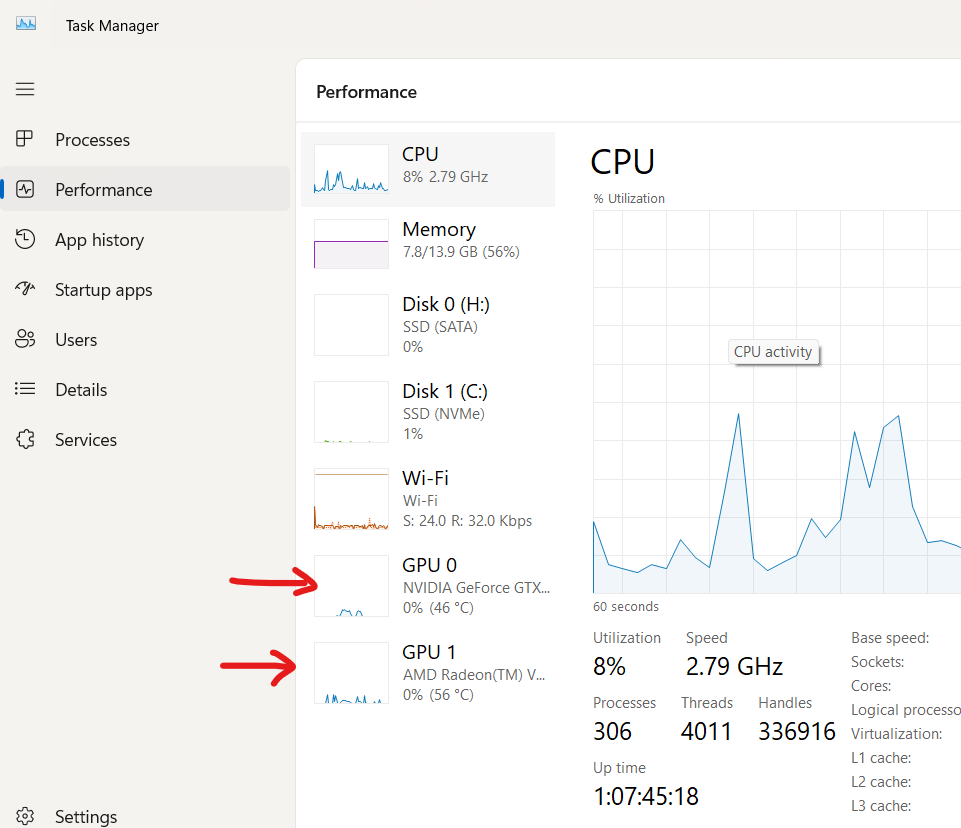
If you hit CTRL + SHIFT + ESC on your keyboard to bring up the Task Manager and click on “Performance” then you can see what shows under “GPU” (see the screenshot below). That will give you a clue as to what driver software to look for to see if it gives you any better control over your screen color.
Honestly though, unless there’s a pretty drastic difference I wouldn’t worry about it too much. I use a laptop as well, and I’m pretty sure I’ve never messed with calibration. That’s probably easy for me to say, because I have my own photo printer. When I print, I often print a small 4×6 or something to check the colors and then tweak the file before I print larger. That’s a lot harder to do if you order prints outside of your home. 🙂
If you do see a pretty drastic difference between your prints/other monitors, then I can try to help you further, just let me know.
Attachments:
April 8, 2025 at 4:46 pm #95057 James StaddonKeymaster
Would it work to get a few test photos printed at the location you plan to print all your future photos, then adjust your screen to match the color/saturation/contrast of those test prints? When your screen matches the test prints, then you should be able to adjust your photos on that screen to have them look pretty close to what they would look like in print.
April 10, 2025 at 5:15 am #95065Laura LaneParticipantThanks @buddingphotographer and @jamesstaddon.
I looked at the GPU, and no, I only have AMD Radeon. I watched the course video, James, on preparing to print, and you mentioned the sRGB colour profiles or something, and I downloaded some and have set sRGB2014 as my default profile, and colour rendering is better than it was when I first got the laptop. And no, it’s not too drastically different to our PC now, which is good.
So handy being able to print photos yourself! I have been getting prints done locally and trying to match my screen calibration to them, but it doesn’t really help long term because the local printer is not what I would normally use. So I need to order some from my preferred printer!
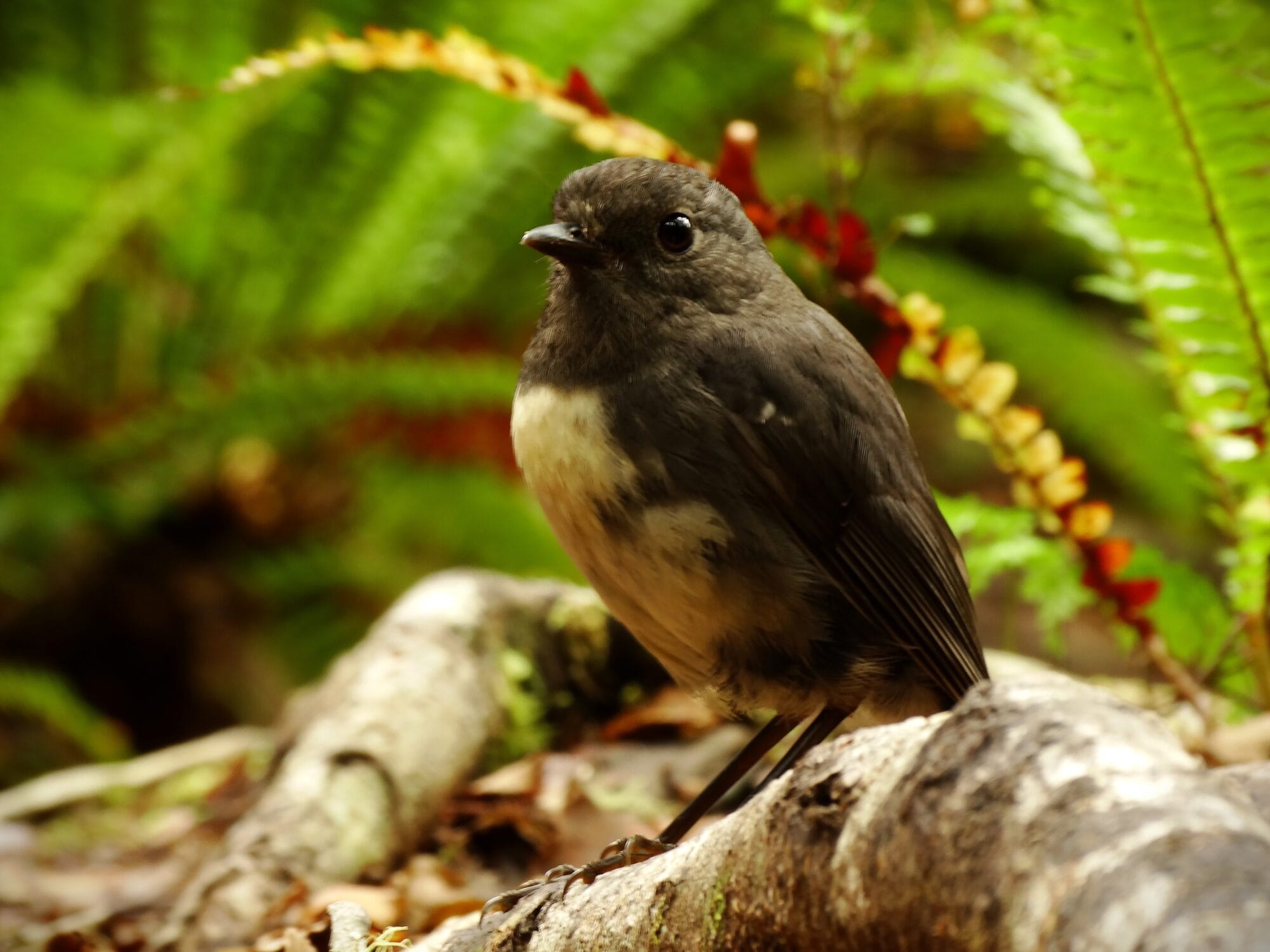
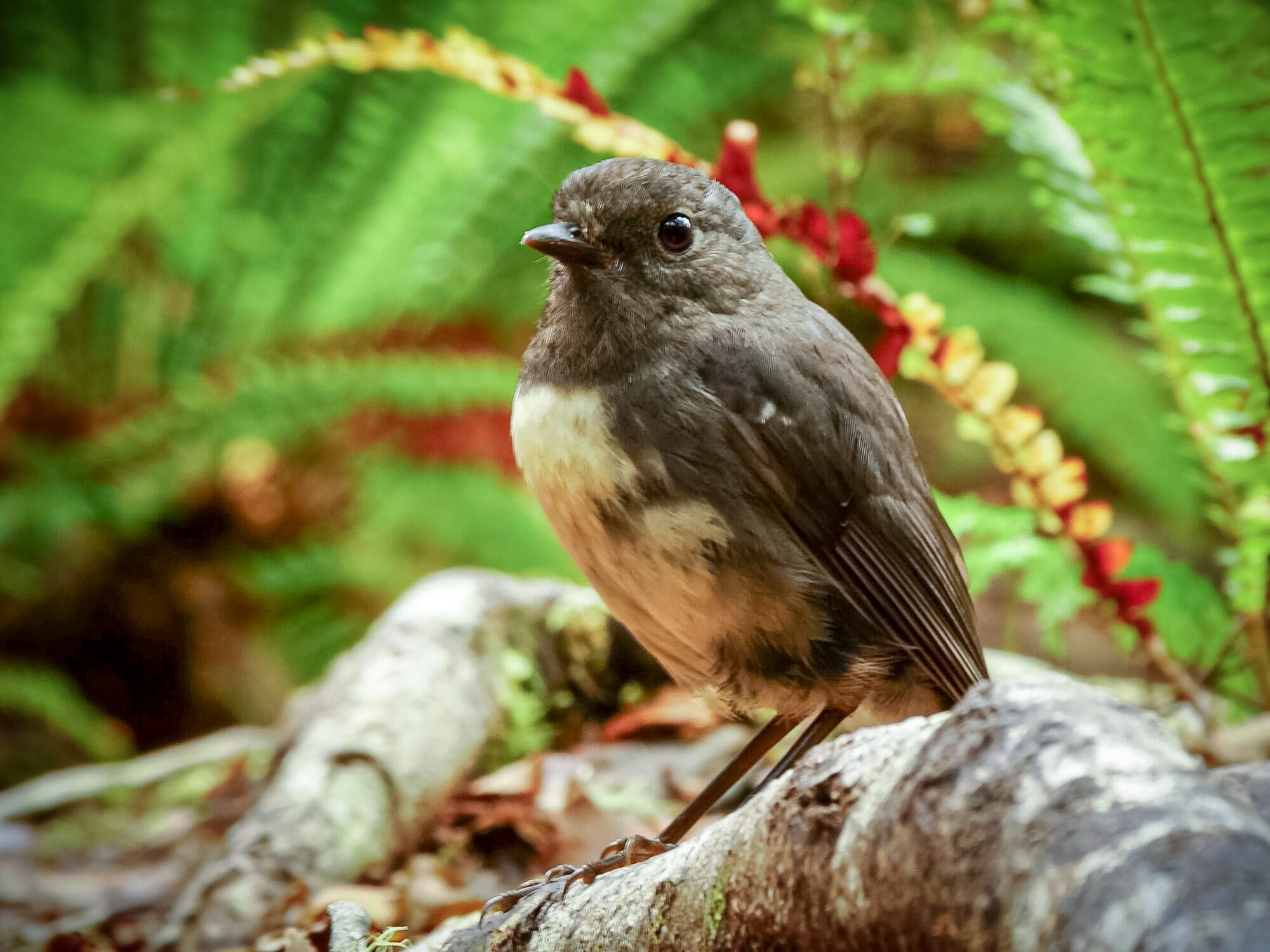
I’ll attach a photo that looks good on my screen, but that printed too dark and contrasty (and maybe a little too saturated on the greens). But then you have to wonder at what angle the laptop screen should be to show colours correctly! Confounding variables haha! How does it look on your screens?
Again, thanks for your help.
–Laura-
This reply was modified 1 year, 5 months ago by
 Laura Lane.
Attachments:
April 11, 2025 at 4:32 am #95104ModeratorI looked at the GPU, and no, I only have AMD Radeon.
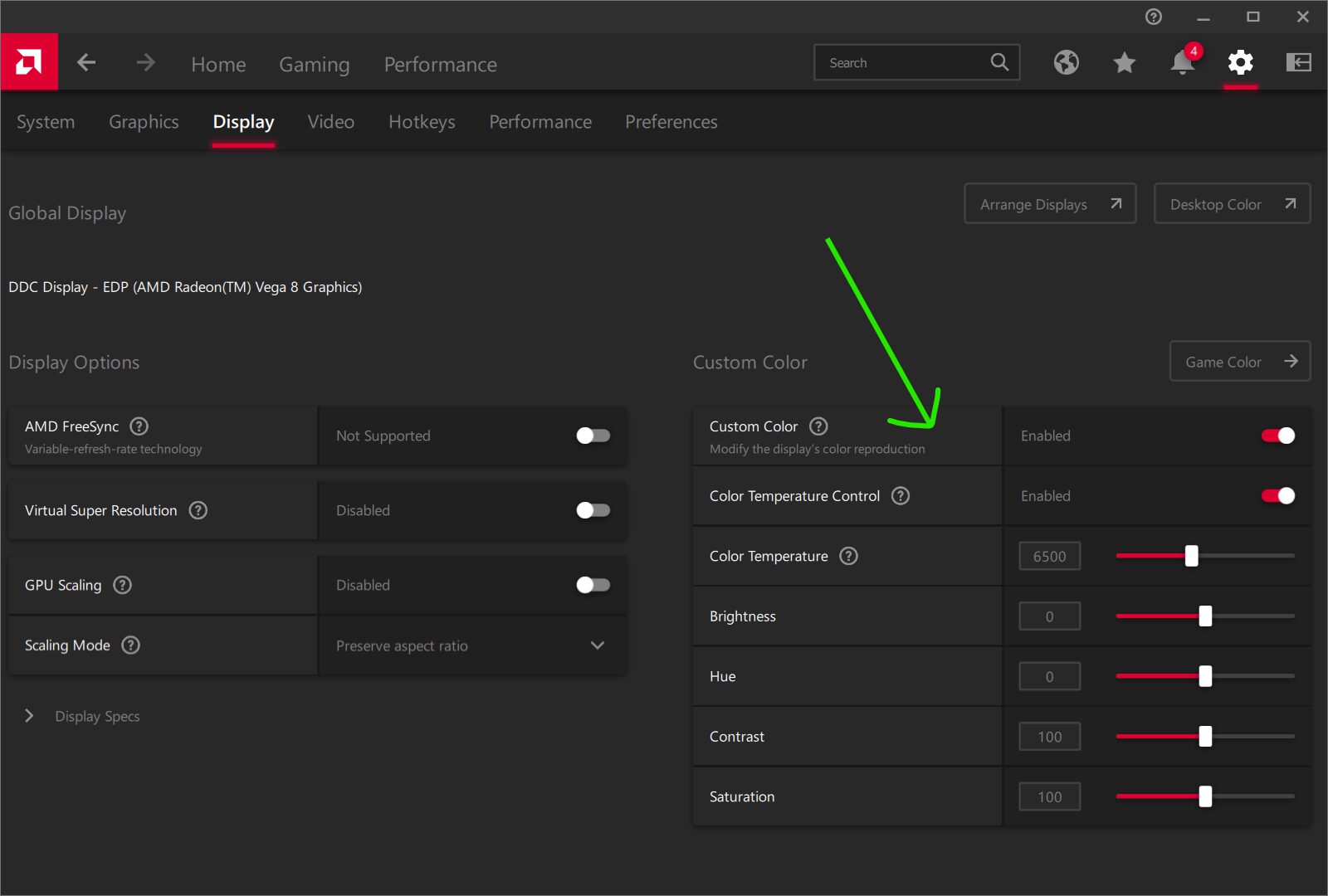
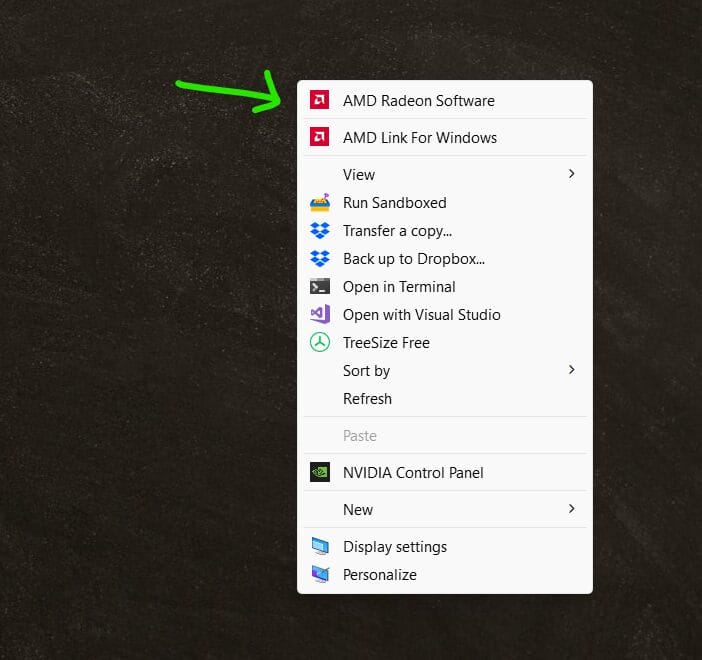
If you go to the default desktop screen where your icons are, right click, and then click on “Show More Options” do you see something for “AMD Radeon”? If so, click it and see if you can find the settings for “Display” > Custom Color. See the screenshots attached.
you mentioned the sRGB colour profiles or something, and I downloaded some and have set sRGB2014 as my default profile, and colour rendering is better than it was when I first got the laptop. And no, it’s not too drastically different to our PC now, which is good.
Where are you applying this color profile? In Lightroom, or globally for all applications? How do you go about installing and using such a profile?
I’ll attach a photo that looks good on my screen, but that printed too dark and contrasty (and maybe a little too saturated on the greens). But then you have to wonder at what angle the laptop screen should be to show colours correctly! Confounding variables haha! How does it look on your screens?
Yeah, I’d say it looks a tad too greenish and contrasty to me as well. If your laptop screen changes colors when you tilt it, then yeah, no amount of calibrating is going to fix that. 🙁 You need an IPS monitor that doesn’t change color/contrast when you tilt it. If you’re going to be doing a lot of color-critical printing it would be well worth your while to purchase an external monitor that you hook up to your laptop to use for editing photos for printing. A 2nd monitor comes in really handy for other things as well, but that’s the easiest way to get a better quality screen without having to buy a whole new computer. (Make sure you get one with IPS technology).
Attachments:
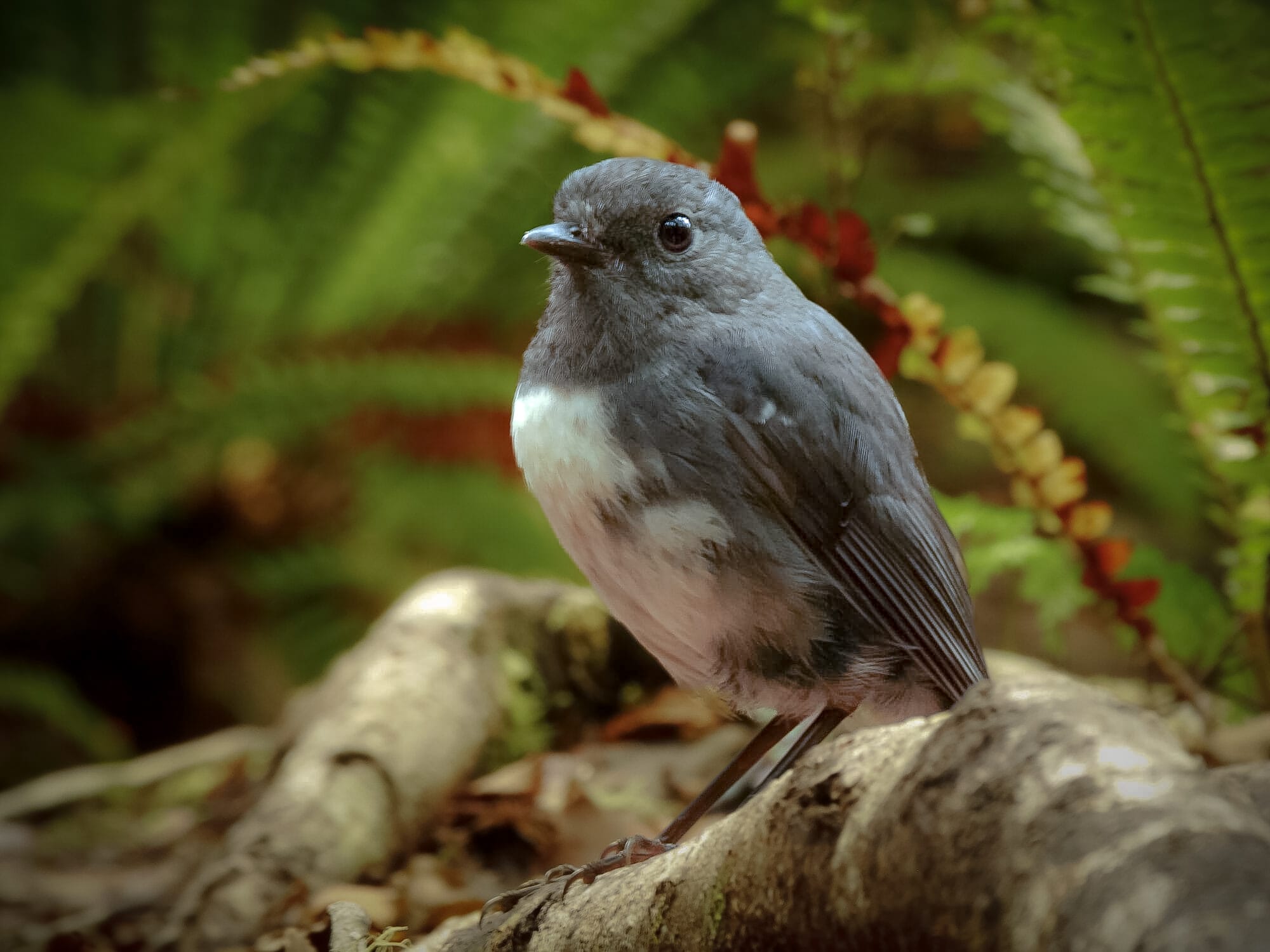
April 16, 2025 at 1:14 pm #95178James StaddonKeymasterWow, what a neat photo! So down close to the ground. Filling the frame. And foreground and background blur giving it some depth. Love it.
But yes, I’d say it’s dark to begin with. Even though the histogram is correct with the whites and blacks, the darks cover a majority of the photo and they are quite dark.
Without having printing in mind, this is how I would edit it on my computer (see attached “edit 1″…as best as I could do with the compressed JPG I had). Edited like this, however, with the subject brighter and with more detail, it doesn’t stand out as well against the busy background. It might require a little bit more intrusive editing, like local edits or selecting the subject and tweaking it and the background separate from each other (see “edit 2”).
I don’t normally do this level of editing. But I think this is just the nature of having a dark-colored subject to begin with, and in the lighting condition that you’re shutting in.
Attachments:
-
AuthorPosts

You must be logged in to reply to this topic.