
Is it just me, or is anyone else running out of storage space in Google Photos?
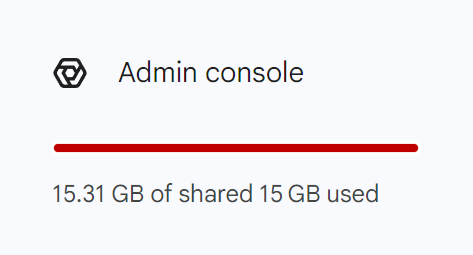
Of course, there’s the easy way out: Google makes it very easy to buy more storage.
Or perhaps you don’t even use Google Photos. You have some other fantastic way of viewing your phone photos across multiple devices. If you do, I’d love to hear about it!
But what if I don’t know of a better method than Google Photos? And what if I don’t want to spend more money than I have to? What do I do when my Google Account starts to run out of storage? Or, as was in my case earlier this week, I completely maxed out.
I had already tried dealing with the dreaded red bar showing up in Gmail . . . and Drive and Google Photos.
“You’ve only got 5% of your space left” it warned. “You need more storage. Click the little buy now button to solve all your storage problems!”
So I did what I always do. I went and deleted like a ton of old emails and duplicate photos.
Of course, I had done this before. Many times. But old emails and duplicate photos were becoming scarce. And that red bar at 95%, 96%, 97%? It was becoming a regular decoration across my Google account.
The Good Old Days of “Storage Saver”
If only Google had kept their old “Storage Saver” policy.
Before May 9, 2021, I backed up all my phone photos to Google for free. I didn’t use “Original” quality. I let them downsize slightly with the “Storage Saver” option. The quality difference was negligible, and the best part? They didn’t count toward my storage.
But then that fateful day came when Google changed the rules.
Was it greedy? Or was it smart?
If I were Google, I’d say it was a brilliant business move. But I’m not Google. I’m me. So from my perspective . . . it felt a little greedy.
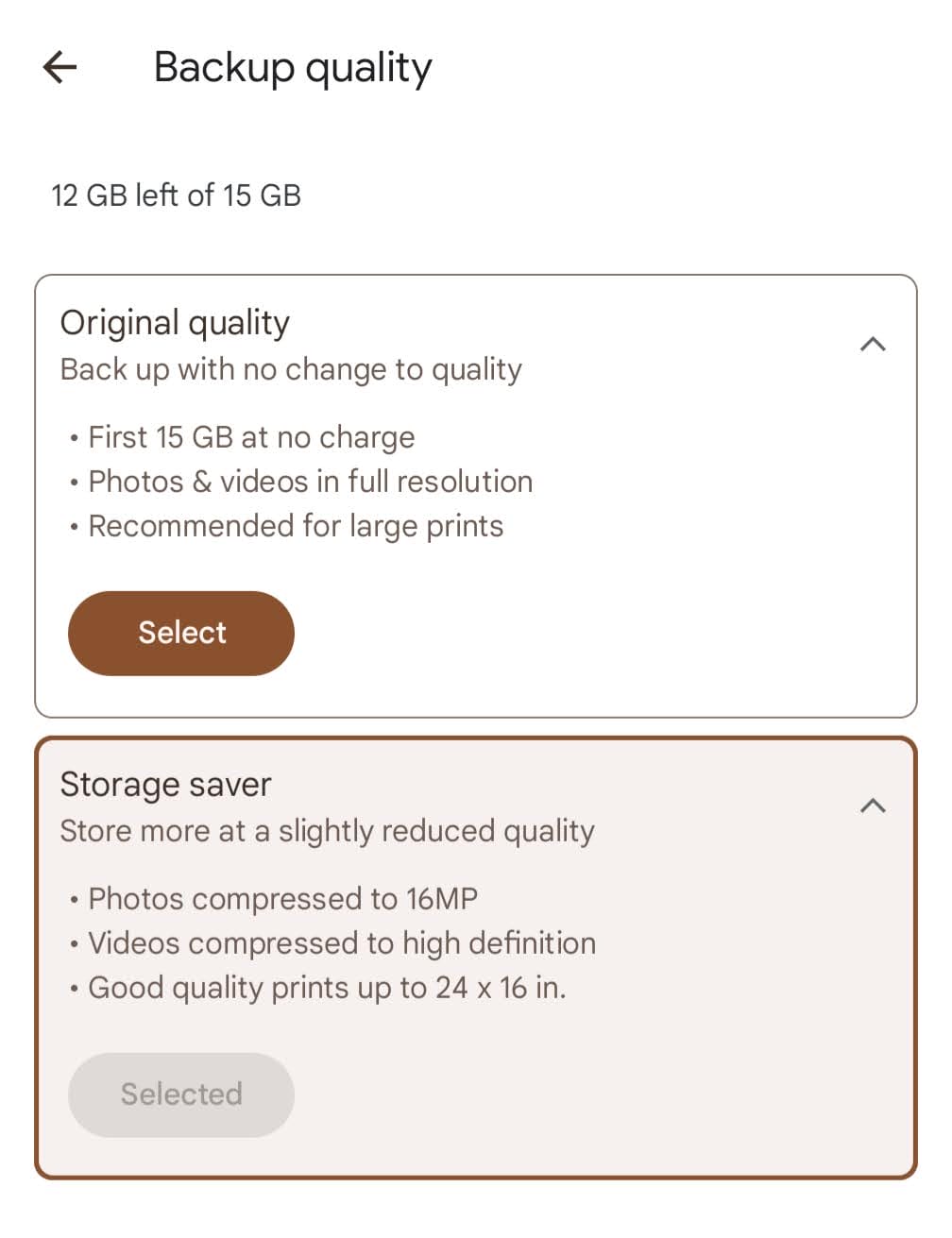
But that was almost five years ago! It was super convenient having my “storage saver” photos stored in Google Photos, but the reality of that convenience was coming to a head. Would I just give in and click that little “buy now” button?
The Mess I Could No Longer Ignore
Before surrendering, I decided I would try one last thing.
I would actually figure out how Google Photos worked.
You’d think, being a photography educator, I would already know everything about Google Photos. But nothing could be further from the truth!
All the photos on my phone were a mess! I have a personal Gmail account that my Lenspiration email addresses are all tied to through a Google Workspace account. When I clicked on the personal Gmail account in Google Photos, I’d see a bunch of photos through 2016. When I clicked on the Workspace account in Google Photos, I’d see a bunch of photos from 2016 to 2025. But I also saw some 2022 photos in my personal Gmail account. And then there was a decision I made in 2019, evidently my attempt to free up space on my phone, where I removed a ton of photos and put them on an external hard drive. I moved photos off for about 4 years. That made some of those years of photos disappear from my Google Workspace account. But not all of them. Thankfully, everything is visible in my Google Workspace account from 2023 through 2025. But when I open the Samsung Gallery app, I don’t see all of 2023 or 2024, but only 2025. And then to make things worse, I got a new phone in 2026, giving my old phone to Julianna. When she would take a picture, it would upload to phone, so I switched Google Photos on her phone to backup her photos to her personal Gmail account . . . and suddenly all my 2025 photos showed up in her Google Photos! And then I noticed that all her photos were showing up in my Google Workspace!
It was horrendous! Yes, a very big mess.
I’ve created a custom system for organizing my DSLR photos without breaking a sweat. But my phone photos? I honestly had no idea what had been happening to them since I got my first smartphone in 2012.
It was about time I did something about it.
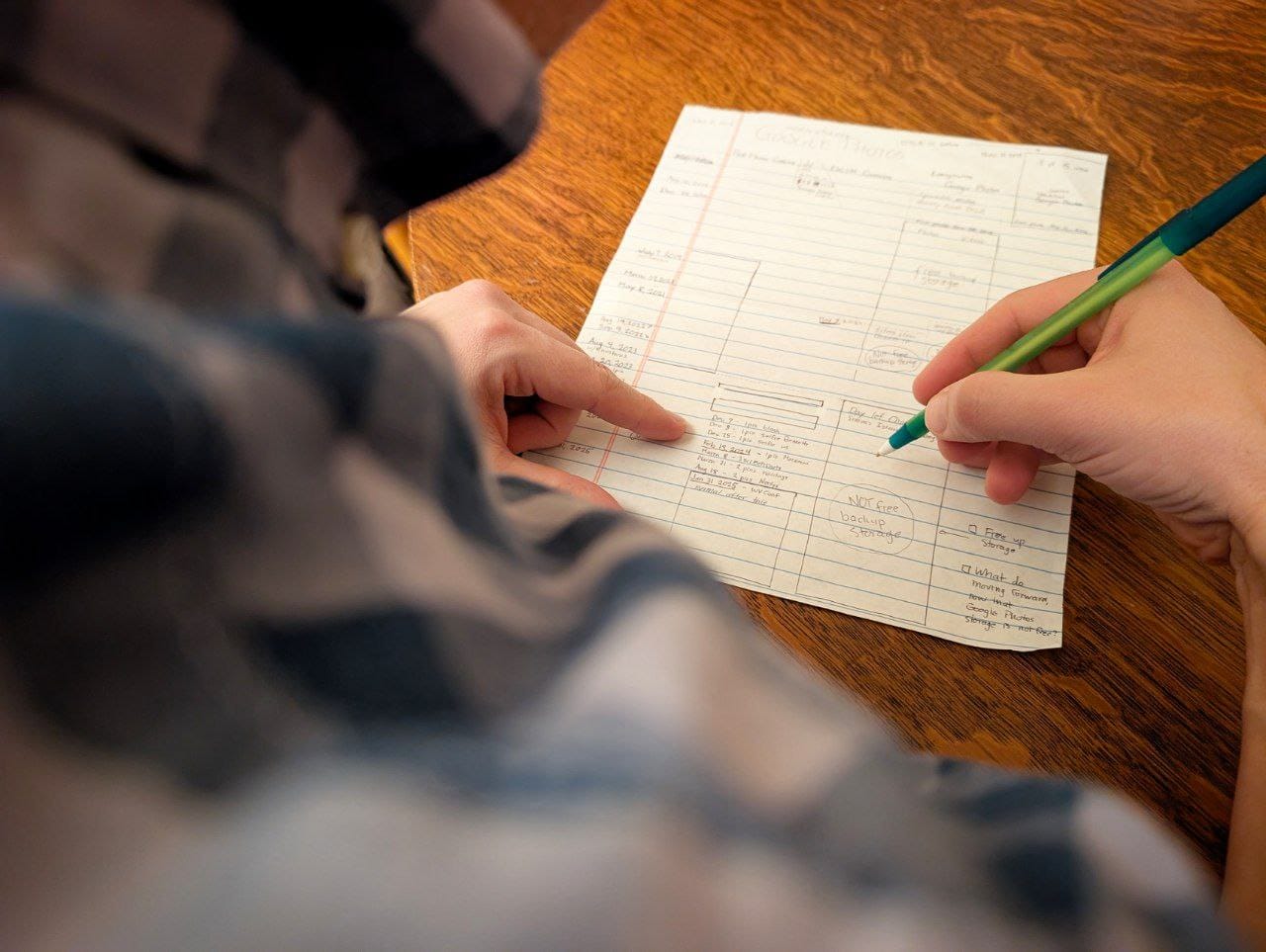
What I Finally Learned About Google Photos
It would take too long to explain how I untangled myself from the problems I just explained, but I will share the things I learned about Google Photos in the process of untangling myself. They are things I wished I had understood years ago.
This is based on my experience using an Android device. If you see something inaccurate, feel free to correct me.
1. More than a Gmail account
When I signed up for Gmail over a decade ago, I was in actuality creating a Google Account that offered many perks and services.
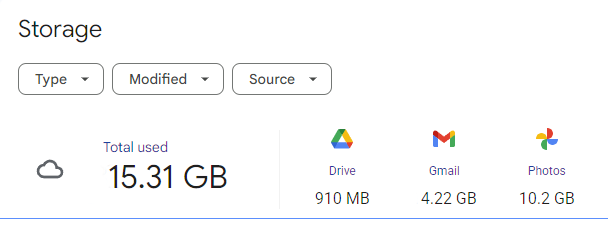
One of those perks was free online storage space. Google uses that space to store things like emails and email attachments that go through Gmail. At the time of this blog post, Google offers 15GB of space for free with an account. Normal email correspondence takes up such little storage that running out of the space is generally never a concern.
However, that storage space can also be used if I use any of Google’s other services. But more about that later….
2. Photos live on your phone first
When I take a photo on my phone, it is stored in a folder. It’s using phone storage space (Device Storage).
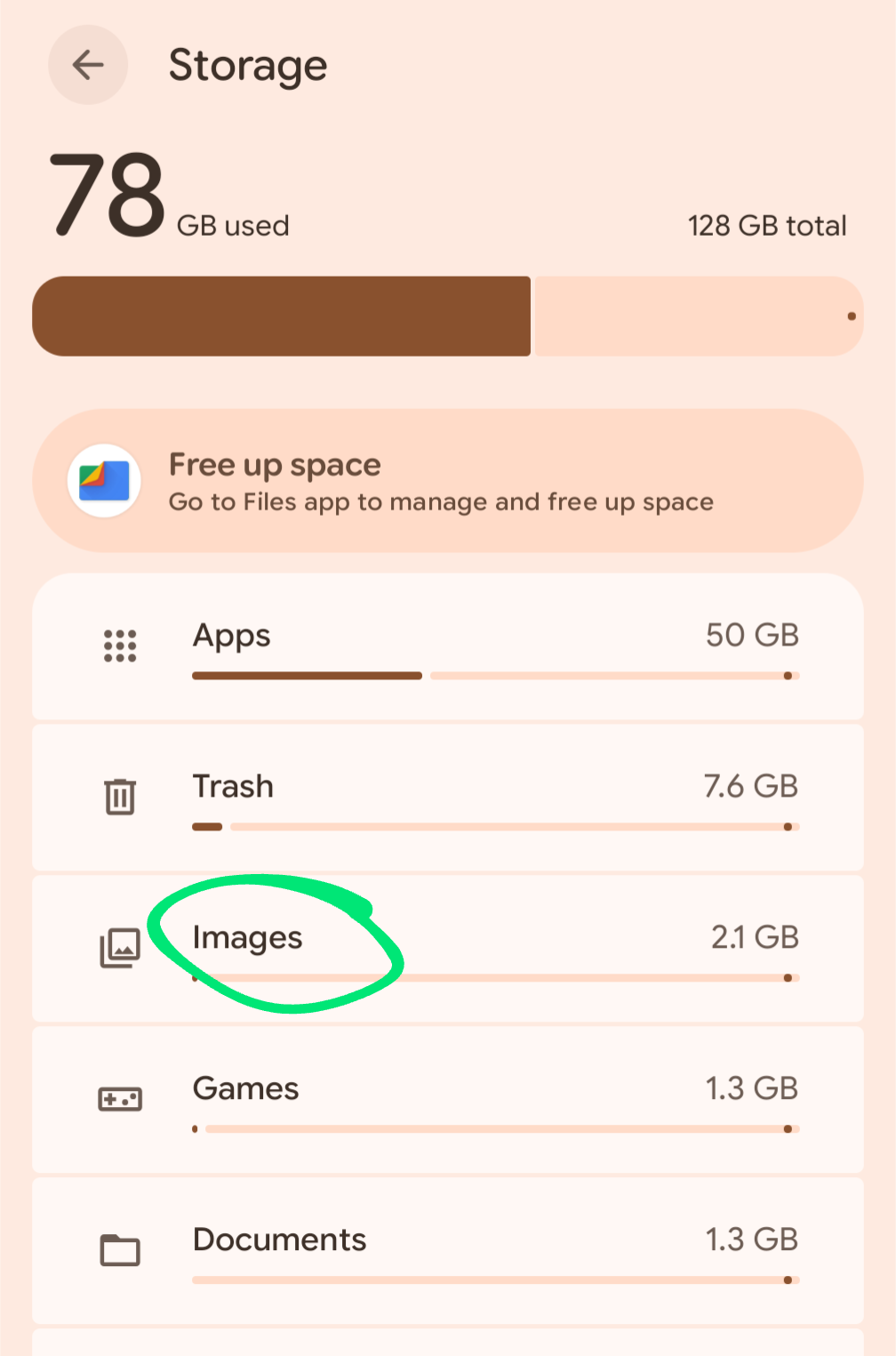
After a photo is taken, it can be viewed in the Camera app or any other default gallery app that often has simple editing, markup, album-organizing, and sharing options.
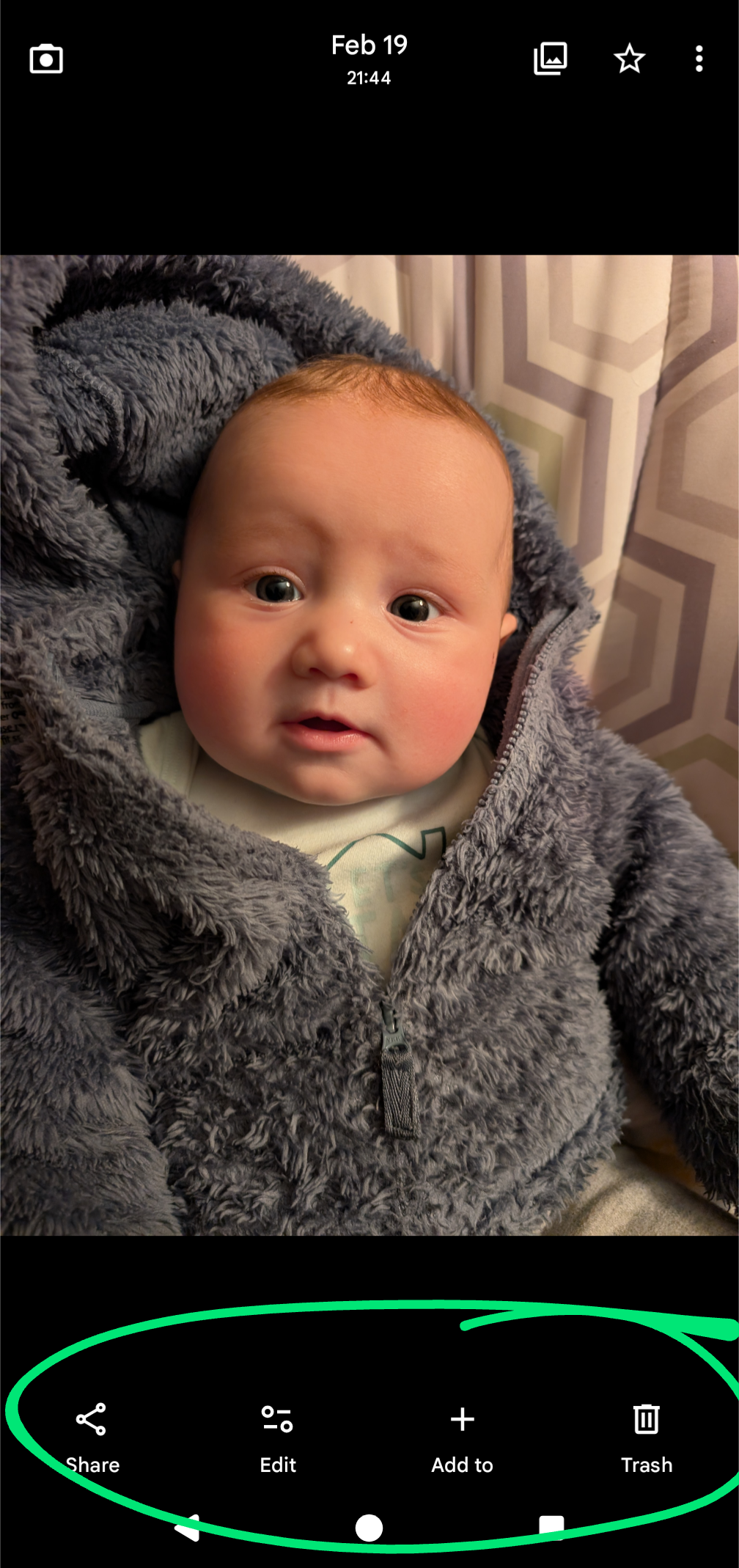
3. Photos show up in Google Photos—even if they’re not backed up
The photo I just took can also be viewed in the Google Photos app. Regardless of what Google account I’m logged into on my phone (my personal Gmail, Julianna’s Gmail, or my Google Workspace account), that photo will show up in the Google Photos app. In Google Photos there are also similar, albeit sometimes different, editing, markup, album-organizing and sharing options.
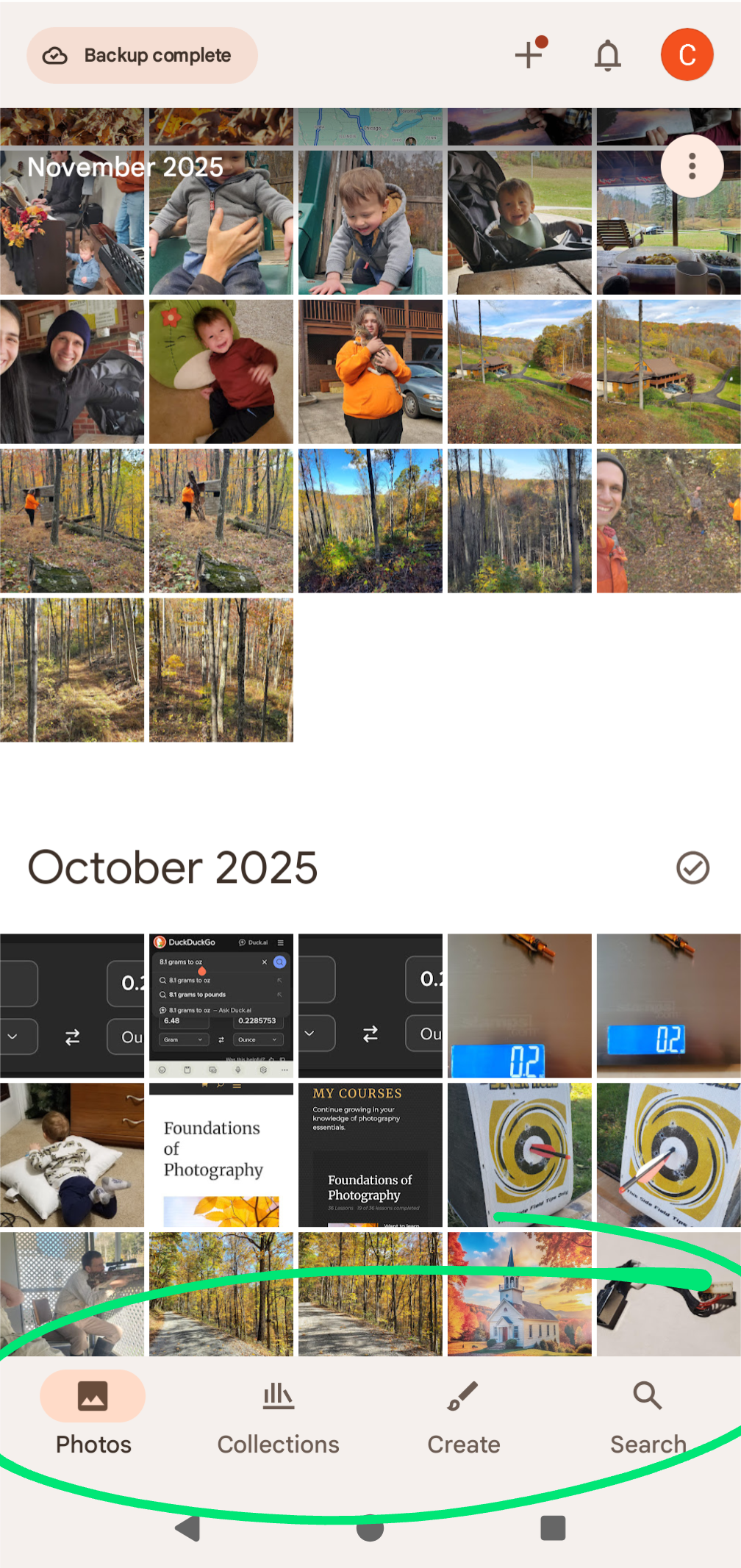
4. Backup creates a duplicate—and it counts
If I want to view my photo on another device (ie. my computer), then Google Photos offers a “Backup” option.
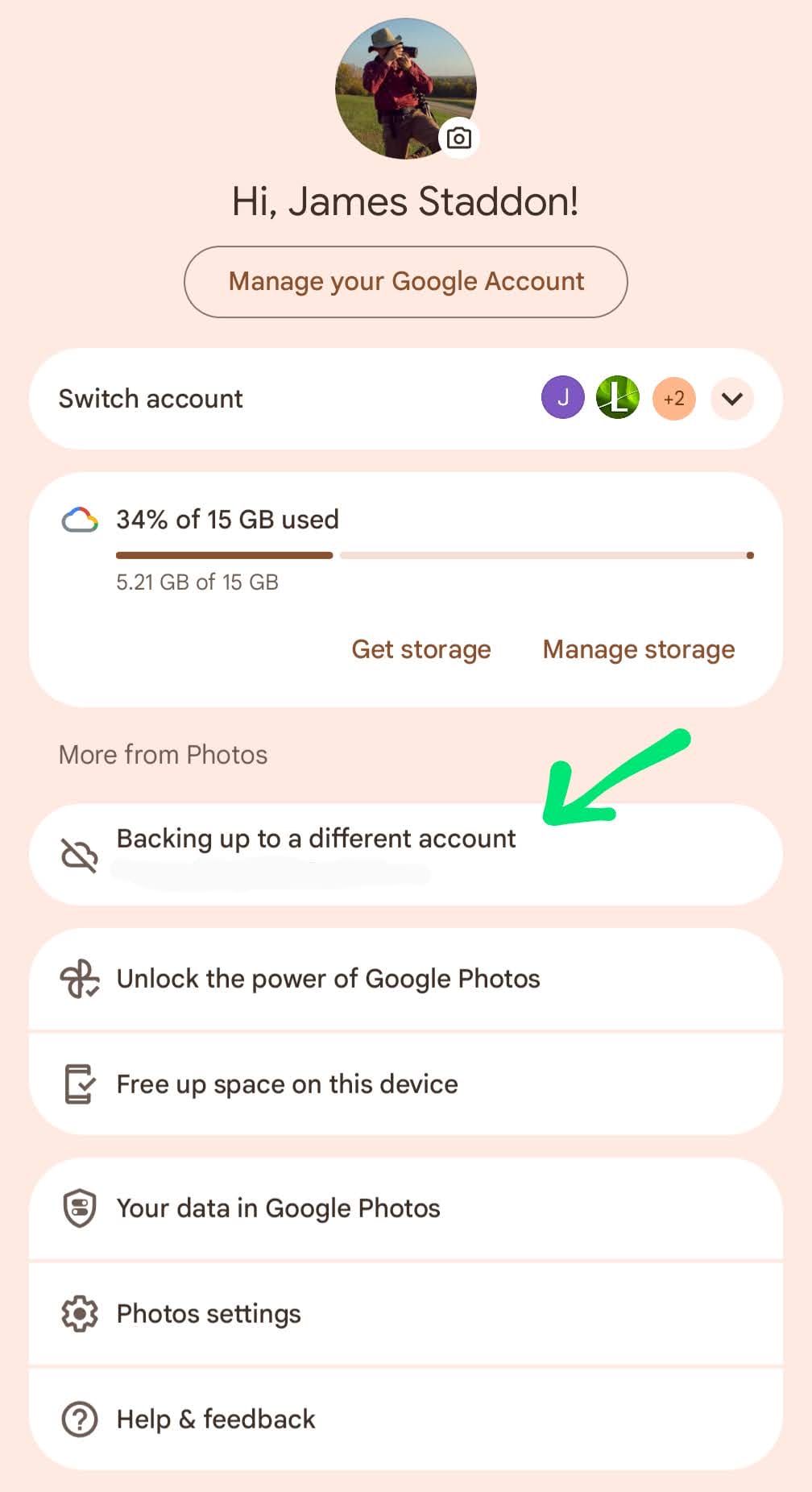
Let’s say I’m logged in to my personal Google account on my phone. If I choose to back up Google Photos to that account, then a duplicate of every photo I take on that phone will automatically be uploaded to that account.
Now I can see those photos anywhere I log into my personal Google account! I can open Google Photos in a browser . . . I’ll see my photos. I can log into my personal Google account on another phone . . . and I’ll see my photos there too.
But there’s a catch. Each backed up photo counts toward my Google account storage. And because photos take up a whole lot more space than an email, I will run out of Google account storage much faster.
Yes, you can choose “Storage Saver” quality to reduce file size. But since May 9, 2021, even Storage Saver photos count toward your storage.
5. “Free Up Space” isn’t as innocent as it sounds
Now, what if I take so many photos that my phone starts to run out of space? Google Photos offers a clever solution. On my phone in Google Photos, there’s a “Free up space on this device” option. If you choose this, it will delete all the photos on your phone that are backed up to Google Photos. In effect, you are making the Google Photos backup copy the only copy of my photos! Pretty slick, I’d say. They have successfully transferred your photos from off my phone (in the name of freeing up phone space) to my Google account, propelling me much more quickly toward running out of my free 15GB of space.
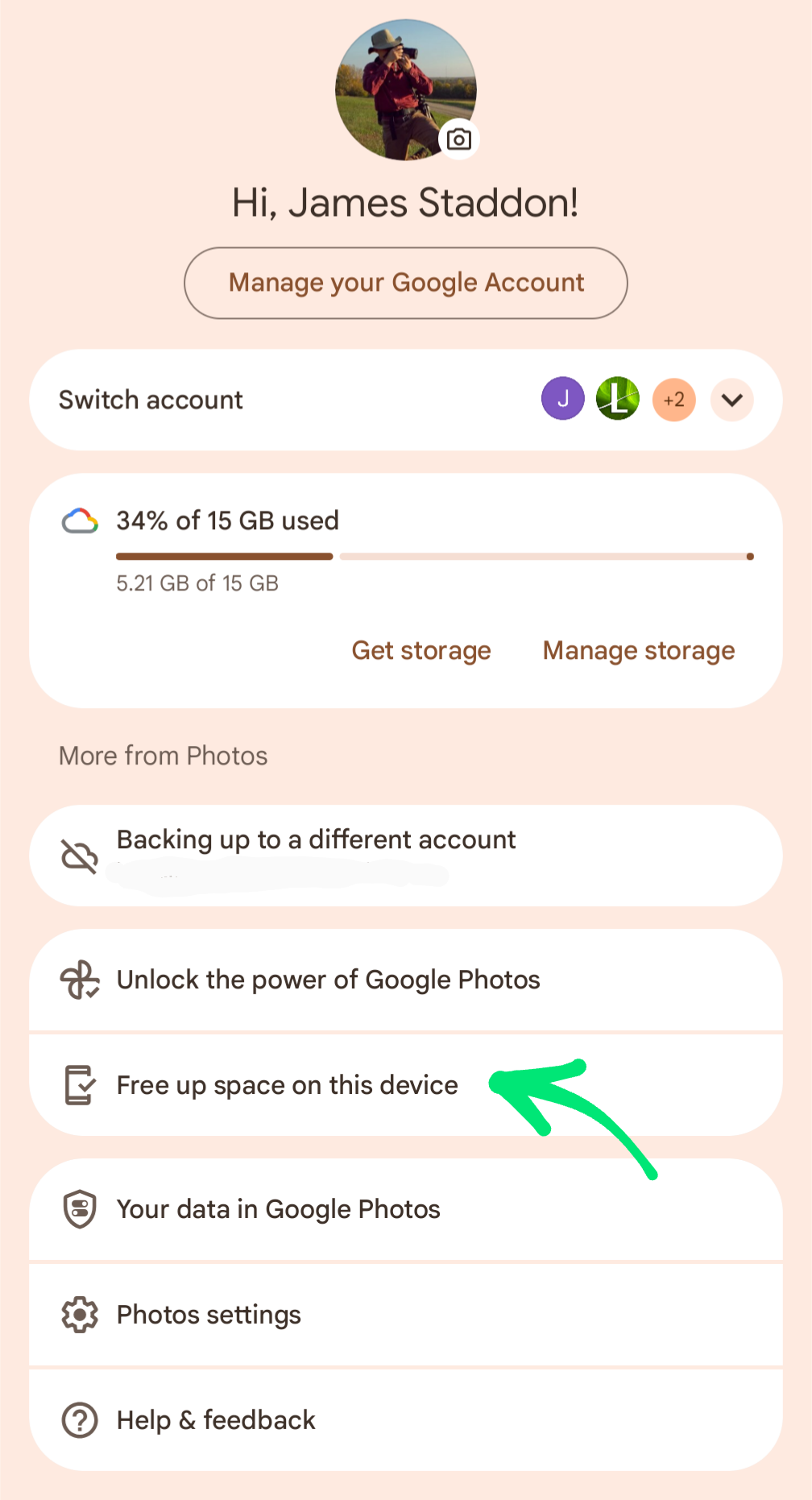
Over all these years, without me knowing it, I was moving my photos from my phone (when I was running out of space there) over into my personal Google account, and then later, my business Google Workspace account.
How I solved the problem (without paying anything . . . yet)
Now that I understood how Google Photos worked and what was happening to my phone photos over the years, I could trace which accounts they were in. Instead of solving the problem by moving them all into one Google account (which would be way more than 15GB), I just created a spreadsheet that showed which Google accounts contained which years of photos.
And to solve the red bar issue, I simply resurrected an old Google account I had created a long time ago that has been laying dormant for a long time. Using a browser, I moved the entire last year’s worth of photos from my overflowing business Workspace account and moved them over to the new account. Then, in Google Photos on my phone, I simply logged in to the new account, and started backing up my photos to that account so any new pictures I take are stored there.
As for the mixup with Julianna’s pictures, I just made sure everything was 100% backed up to the correct accounts (her phone to her Google account, and my phone to the new Google account), and then she just deleted any of my photos that happened to upload to her account, and I deleted any of her photos that happened to upload to my account. At first, I thought this would be difficult, but then I noticed the Recently Added tab in Google Photos, and all the offending photos were in there because the mixup had just happened.
The best thing about it
So! Maybe this wasn’t the most riveting blog post I’ve ever written. But if you’ve been staring at a red warning bar in Gmail, quietly wondering where all your space went and how things got so tangled, I hope I’ve been able to give you some clarity — and maybe a little courage to dig in and sort it all out.
I’ll may share some more specifics about my foray into understanding Google Photos in next week’s webinar, and I’d love to answer any specific questions that you may have about it. If you’re feeling stuck, bring your mess with you. Or, just drop a question in the comments below! We’ll try to untangle it together.
At any rate, while I’m excited to have the “red bar” problem solved, I’m more excited about the fact that I finally understand how Google Photos works. I don’t have to ignore the problem any more. Google Photos makes sense now. And finally, my phone photos are organized!
“Let all things be done decently and in order” (I Corinthians 14:40).






0 Comments